Laptops

Best Laptop Accessories

Laptops are more than just devices; they’re companions in our daily lives. We use them for work, leisure, and keeping in touch with the rest of the world. To ensure your laptop serves you faithfully and remains in tip-top condition, there are five essential accessories every laptop owner should consider. Not only do these accessories enhance your laptop experience, but they also safeguard your valuable investment.

1. Laptop Bag or Backpack

Your laptop deserves the best, especially when it accompanies you on your journeys. A top-quality laptop bag or backpack is your first line of defence against unexpected bumps, minor accidents, and frustrating scratches that seem to appear out of nowhere.

But safeguarding your laptop doesn’t mean compromising on style. Today, laptop bags come in a dazzling array of designs and materials, from the sleek and sophisticated leather options that exude professionalism to the rugged, adventure-ready backpacks perfect for those who seek thrills beyond the office.

For example, imagine you’re a freelance graphic designer who often works in trendy coffee shops. A stylish, leather laptop bag not only complements your professional image but also provides ample space for your laptop, tablet, and all the creative tools you need to make your visions come to life.

What’s more, comfort matters. Look for a bag or backpack with padded shoulder straps and an ergonomic design that makes your daily commute or exploration a breeze.

2. External Hard Drive

Laptops, no matter how spacious their internal storage might be, have a knack for filling up at the most inconvenient times. Files, photos, and videos accumulate, leaving you with limited space for the new memories and projects you want to capture.

This is where an external hard drive swoops in as your digital saviour. It not only offers generous storage but also plays a pivotal role in data backup, ensuring that your important files remain safe and sound.

Consider this scenario: You’re a budding photographer, and your laptop is filled with high-resolution images from your recent photoshoots. An external hard drive provides the space you need and is a reliable backup for those irreplaceable shots.

Many external hard drives are designed to be compact and lightweight, catering to professionals on the go who need access to large files anytime, anywhere.

3. Laptop Cooling Pad

Laptops are diligent workhorses, but they can get uncomfortably warm during demanding tasks. This is where a cooling pad with built-in fans comes to the rescue.

Overheating can be detrimental to your laptop’s performance and lifespan. Cooling pads are designed to dissipate heat effectively, preventing your laptop from reaching dangerous temperatures.

Let’s say you’re a gaming enthusiast who enjoys intense multiplayer battles. A cooling pad not only ensures your laptop stays cool during extended gaming sessions but also enhances overall gaming performance, giving you the competitive edge, you need.

Some cooling pads take comfort to the next level with comfortable designs and adjustable angles, ensuring not only a cooler experience but also a more comfortable typing and viewing adventure.

4. Wireless Mouse

While laptop touchpads are undoubtedly convenient for everyday tasks, there are certain activities that demand a higher level of precision and control. This is precisely where a wireless mouse, considered one of the top laptop gadgets, steps into the spotlight, transforming your laptop into a powerhouse of productivity.

Picture this: You’re a financial analyst tasked with precisely separating complex spreadsheets, where every cell and formula holds critical significance. Here, a wireless mouse becomes your trusted companion, according to laptop accessory reviews, elevating your productivity and accuracy to new heights.

Consider the precision required when selecting specific cells or fine-tuning data points. A wireless mouse, rated as one of the best laptop accessories, delivers a level of control and finesse that touchpads can’t quite match. It’s like having a digital pen in your hand, allowing you to navigate through intricate data with ease and confidence.

Ergonomics Redefined – Best Laptop Accessories

Now, let’s talk about ergonomics, a crucial aspect often overlooked in the pursuit of productivity. Many wireless mice, ranked among the best laptop accessories, are carefully designed with ergonomics at the forefront. This means they’re crafted to fit snugly in your hand, reducing the strain that can occur during extended use.

Think about those marathon work sessions or intense gaming nights. With an ergonomically designed wireless mouse, one of the best laptop gadgets, you’ll experience significantly less hand fatigue and discomfort. Your hand will thank you for choosing a tool that’s as comfortable as it is precise.

Continuous Connectivity – Top Laptop Gadgets

Connectivity is a breeze with wireless mice, offering you the flexibility to choose between USB dongles or Bluetooth. This means you can effortlessly pair your mouse with your laptop, enhancing your user experience with top laptop gadgets, without the hassle of tangled wires.

With USB dongles, simply plug and play – your mouse is instantly ready for action. Bluetooth connectivity, on the other hand, provides a cable-free experience, allowing you to work seamlessly, unencumbered by cords.

So, whether you’re dissecting financial data, editing intricate designs, or simply browsing the web, a wireless mouse adds a dimension of precision and comfort to your laptop experience with the best laptop accessories that are hard to beat.

5. Laptop Stand

Among the lineup of best laptop accessories, a laptop stand often plays the role of an unsung hero, quietly but significantly enhancing your daily computing experience.

Now, picture this: You’re a content creator, spending hours editing videos for your YouTube channel. A laptop stand keeps your laptop at the perfect height for video editing, aligning with the best laptop accessory reviews’ recommendations.

Imagine the comfort and efficiency you’ll experience when you’re not constantly hunching over your laptop screen. Your neck and back will thank you for choosing one of the best laptop accessories designed with your well-being in mind.

But the benefits of a laptop stand don’t end with ergonomics alone. Think about the efficiency boost it brings.

Consider this: As you immerse yourself in intensive tasks or indulge in gaming marathons, your laptop tends to get warmer. Here, a laptop stands acts as a silent guardian. Elevating your laptop creates space for improved airflow underneath, contributing significantly to better cooling.

This efficient cooling system means your laptop can maintain its optimal temperature, ensuring smooth and uninterrupted performance. So, whether you’re editing videos, crunching numbers, or immersing yourself in the latest gaming adventures, a laptop stand’s cooling prowess enhances your efficiency.

But wait, there’s more! Some laptop stands come with extra features that transform them into versatile additions to your workspace. These include nifty cable management solutions, ensuring your workspace remains clutter-free and organized. Additionally, many laptops stands flaunt space-saving designs, making them ideal for even the cosiest of work environments.

Therefore, a laptop stand isn’t merely an accessory; it’s a cornerstone of comfort and efficiency. It aligns with the recommendations of the best laptop accessory reviews and stands as one of the top laptop gadgets, ensuring your laptop serves you not only faithfully but also comfortably.

A stylish laptop bag, a capacious external hard drive, a high-performance cooling pad, a precision-enhancing wireless mouse, and an ergonomically designed laptop stand are your steadfast companions on your journey to a more efficient, enjoyable, and comfortable computing experience.


If you’re in search of high-performance laptops bundled with these essential accessories, you can explore our selection right here.

Adding these laptop accessories isn’t just about improving your laptop; it’s about keeping it safe and making your life more comfortable. A good laptop bag, an extra hard drive, a cooling pad, a wireless mouse, and a laptop stand are like your reliable friends, making your computing experience smoother. So, get them and enjoy your laptop even more. Your laptop will thank you, and so will your neck and back!

Top 5 Accessories Every Laptop Owner Should Have!!! Read More »

Laptop troubleshooting

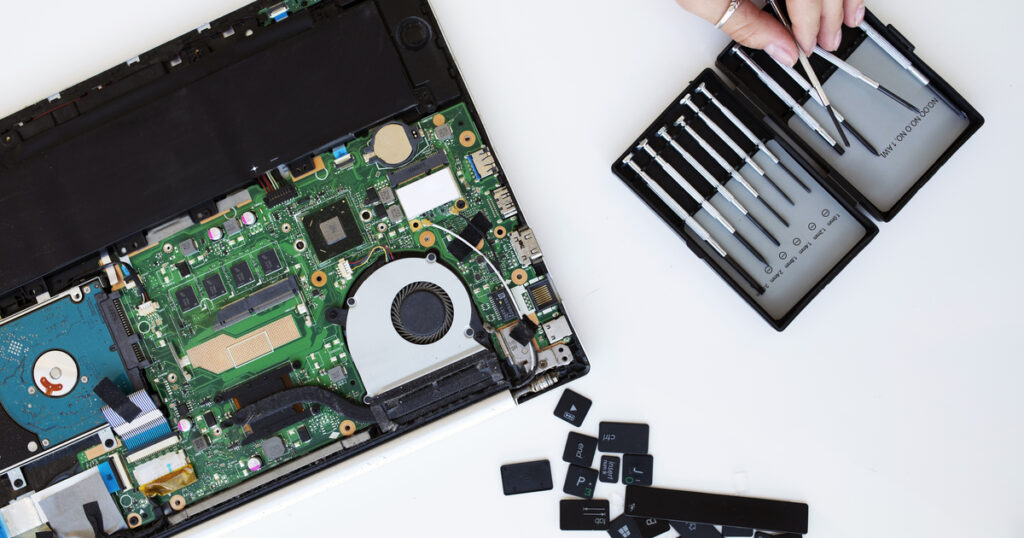
Laptops are incredible companions for our busy lives, allowing us to work and stay connected wherever we are. But let’s admit it – they can also be prone to problems. We’ve all been there – you’re in the middle of an important task on your laptop when suddenly, a glitch occurs.

Frustration sets in as you realize that your laptop is not performing as it should. Whether it’s a frozen screen, a slow system, or an unresponsive touchpad, these laptop issues can disrupt your workflow and leave you searching for solutions.

In this article, we’re going to tackle the top 10 common issues and guide you through laptop troubleshooting . And guess what? You won’t need a tech wizard for this rescue mission – we’re arming you with simple troubleshooting steps that you can do right from the comfort of your home.

Let’s look in and discover practical solutions to these common laptop woes. As we go through each issue, ask yourself if you’ve encountered similar problems and how they’ve impacted your daily routine.

We’ll provide step-by-step instructions and easy-to-follow tips to enable you to regain control over your laptop’s functionality. Remember, you’re not alone in this – we’re here to guide you every step of the way.

1.Laptop won't turn on:

This is one of the most common laptop problems, and it can be caused by a variety of things, such as a dead battery, a faulty power cord, or a problem with the laptop’s motherboard. If your laptop won’t turn on, try the following laptop troubleshooting methods:

Check the Battery and Power Cord:

First things first, ensure your laptop’s battery is charged up. Connect the power cord properly and give it a little time to charge. If you’re not sure, look for the LED indicators – they usually give a hint about battery and power status.

Hold the Power Button:

Sometimes, laptops get into a strange sort of hibernation. Press and hold the power button for about 5 seconds. This can do the trick by resetting the system.

Battery Removal Test:

If you’re still drawing blanks, try this: remove the laptop’s battery and plug it in directly. This rules out any battery-related issues. Now give the power button another go.

Still No Luck? Get Professional Help:

If all laptop troubleshooting fails and your laptop remains lifeless, it might be time to consult a pro. There could be an underlying issue with the power supply, the motherboard, or other components that need expert attention.

2. Laptop screen is black:

If your laptop screen is black, it could be a sign of a problem with the display, the power supply, or the motherboard. Here are a few things you can try:

Check the Power and Display:

Start with the basics. Confirm that your laptop is properly connected to a power source and look for any power indicator lights. Sometimes, a drained battery can lead to a black screen.

Adjust Brightness Settings:

It’s surprising how a simple adjustment can sometimes fix things. Try pressing the brightness keys on your keyboard – maybe the screen just dimmed itself.

Battery Detach and Reattach:

If you’re still in the dark, give this a try: remove the laptop’s battery, and then plug it directly into a power outlet. This bypasses any battery issues and could illuminate the situation.

Seek Professional Help if Needed:

If none of the above steps enlighten the screen, it’s time to call in the experts. A black screen might be a signal of something more complex – issues with the display, power supply, or even the motherboard.

3. Laptop is overheating:

Laptop troubleshooting

Laptops can overheat if they are not properly ventilated. This can cause the laptop to slow down, freeze, or even shut down. If your laptop is overheating, try the following:

Mind the Surface:

Your laptop needs to breathe! Avoid placing it on soft surfaces like beds or blankets – they can block the air vents, causing heat to build up.

Cooling Pad to the Rescue:

Imagine a comfy pillow for your laptop – that’s a cooling pad. It helps to dissipate heat and keep your laptop cool even during intense tasks.

Task Management:

Just like you on a hot day, your laptop needs breaks too. Avoid running heavy-duty tasks for extended periods, especially tasks like gaming or video editing that put a strain on the system.

Seek Professional Help if the Heat Persists:

If your laptop still thinks it’s in a sauna, it might be time to seek expert advice. Continuous overheating can damage internal components, and it’s best to have a technician examine your laptop’s cooling system.

4. Laptop is slow:

There are a few reasons why your laptop might be slow. It could be a problem with the hardware, the software, or even the internet connection. Here are a few things you can try to speed up your laptop:

Program Patrol:

Just like tidying up your room, close any unnecessary programs running in the background. They hog resources, slowing down your laptop’s performance.

Hard Drive Happiness:

Over time, your hard drive can become fragmented, making it harder for your laptop to find data. Defragmenting helps organize the files, improving access speed.

Unused Apps, Goodbye:

Do you need that cooking app from 2016? Uninstalling unused software frees up precious space and can help your laptop breathe easier.

Software Sleekness:

Update your laptop’s operating system and software regularly. These updates often include performance improvements, ensuring your laptop runs smoothly.

Virus Vigilance:

Viruses and malware can stealthily slow down your laptop. Run a complete antivirus scan to ensure your laptop is clean and zippy.

If your laptop is still slow, you may need to upgrade the hardware or take it to a technician for further diagnosis.

5. Laptop battery does not last long:

The battery life on laptops can vary depending on the model and how it is used. However, if you find that your laptop battery is not lasting as long as it used to, there are a few things you can do to improve the battery life:

Close Unused Apps:

Just like turning off lights in empty rooms, close apps you’re not using to save precious battery power.

Dim that Screen:

Bright screens consume battery life. Lower the brightness a bit to save energy without sacrificing visibility.

Go Power-Saver Mode:

Activate your laptop’s power-saving mode. It’s like putting your laptop on an energy-efficient track.

Turn Off Extras:

When you don’t need them, turn off power-hungry features like Bluetooth and Wi-Fi. Your battery will thank you.

Time for a Change?

If your battery still falls short, consider getting a new one. Sometimes, a fresh battery is all your laptop needs for a battery boost.

Laptop troubleshooting

6. Laptop is making strange noises:


If your laptop is making strange noises, it could be a sign of a problem with the hardware. Here are a few things you can do to troubleshoot the noise:

Be a Noise Detective:

Listen closely and figure out where the noise is coming from. It’s like solving a mini-mystery.

Repeat the Sound:

Try to make the noise happen again. Is it a one-time thing or a regular party trick?

Loose Screws or Unwanted Guests?

Give your laptop a gentle shake. Sometimes, it’s just a rogue screw or a bit of debris causing all the fuss.

Get Hands-On:

If you spot something unstable or unusual, tighten it up. Common sense is your best friend here.

Call in the Experts:

If the noise continues its mysterious performance or won’t quiet down, no worries. It’s time to call in the pros. Let the tech wizards take the stage and track down the unruly noise maker.

7. Laptop is not connecting to the internet:

If your laptop is not connecting to the internet, there are a few things you can check:

Check Your Network:

First things first, ensure your laptop is hitched to the right network. It’s like picking the right train at the station.

Look at Settings:

Take a quick tour of your laptop’s network settings. Think of it as making sure you’re on the right frequency

Give it a Restart:

Sometimes, all it takes is a good ol’ restart – not just for us, but for routers and modems too. It’s like a refresh button for your connection.

Cables and Wires:

Check those cables. Think of it as making sure your headphones are properly plugged in for the best beats.

8. Laptop keyboard is not working:

If your laptop keyboard is not working, there are a few things you can try:

Check Connection:

First, ensure the keyboard is properly connected. It’s like making sure a plug is in the socket.

Give It a Restart:

Sometimes, a simple restart helps – just like rebooting yourself after a long day.

Update Drivers:

Update the keyboard drivers, like giving your car a tune-up for smoother performance.

Replace the Keyboard:

If it’s still not working, you might need a new keyboard. Think of it like getting a new pair of shoes when the old ones are worn out.

9. Laptop touchpad is not working:

If your laptop touchpad is not working, there are a few things you can try:

Check Touchpad Status:

First, make sure your touchpad is turned on. It’s like checking if your TV remote has batteries.

Give It a Restart:

Sometimes, a simple restart can do wonders – just like a quick nap for you.

Update Touchpad Drivers:

Update the touchpad drivers, sort of like updating your music playlist for a fresh vibe.

Consider a Replacement:

If it’s still not cooperating, you might need a new touchpad. Think of it as getting new sneakers for better comfort.

10. Laptop speakers are not working:

There are a few solutions you can attempt if your laptop speakers aren’t working:

Check Speaker Connection:

Start by ensuring your speakers are properly plugged in. It’s like checking if your phone’s charger is connected.

Give It a Restart:

Sometimes, a simple restart can fix things – just like a quick stretch after sitting for a while.

Update Audio Drivers:

Update those audio drivers, like giving your car a tune-up for better performance.

Volume Check:

Make sure the volume isn’t on mute or too low. It’s like finding the right volume level for your favourite song.

Consider a Replacement:

If all else fails, it might be time for new speakers. Think of it as getting a new pair of headphones for better sound.

Laptop troubleshooting

Conclusion

And there you have it, your crash course in laptop troubleshooting! By understanding and addressing these common laptop issues, you’ve taken a significant step toward enhancing your computing experience. Remember, every problem has a solution, and armed with the right knowledge, you can tackle these challenges head-on.

The next time you encounter a frozen screen, a lagging system, or any of the other issues we’ve discussed, you’ll know exactly what to do. Your laptop will thank you for the care you’ve given it, and you’ll be back to your productive best in no time. Take advantage of your improved troubleshooting abilities to have a more efficient laptop experience. Happy computing!

10 Common Laptop Issues and How to Troubleshoot Them at Home Read More »

Scroll to Top